
Somewhere Among The Mountains

Platform:
PC
Engine:
Unity Engine
Duration:
6 months
Completion:
2024
Team Size:
1 (+6 Freelancer)
Tools:
Visual Studio, Character Creator 3, GitHub
Programming Languages:
C#, JavaScript, PHP
My Roles:
Lead Developer, Narrative Designer, Game Designer, Casting Director, Voice Director, QA Manager, Technical Lead - Build
Project Synopsis
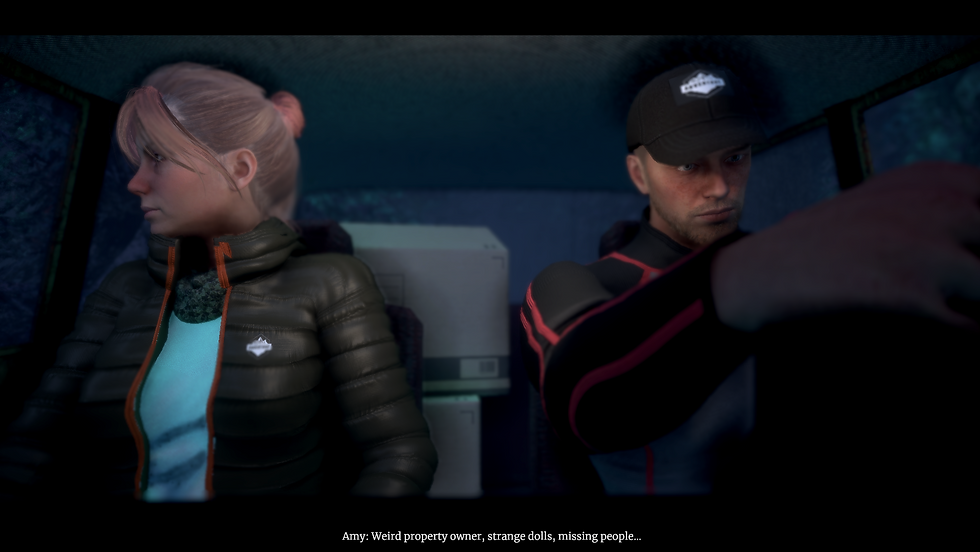
In Somewhere Among The Mountains, four university students - Amy, Jacob, Sam, and Katelyn - travel to an abandoned mansion deep in the mountains to film a documentary about a series of mysterious disappearances. Recently, several visitors who rented the mansion have vanished without a trace, and the students have chosen this eerie location to investigate the chilling events. Despite its dark history, the mansion’s owner continues to rent it out, fueling rumors about what truly happens behind its walls. Some believe the owner is behind the strange occurrences, while others fear that two antique dolls, Devin and Darcy, are the source of the terror.
What begins as an investigation quickly turns into a fight for survival. Separated upon arrival, each student must face the terrifying forces lurking within the mansion. Players take control of all four characters, exploring the mansion and making critical life-or-death decisions. Every choice shapes the story and determines who survives and who falls victim to the mansion’s evil.
My Tasks Included:
-
Designed and implemented branching storylines where player choices impact progression, enhancing replayability and providing a more personalized gameplay experience.
-
Created cutscenes based on scripts, improving the narrative flow and emotional engagement by seamlessly integrating story elements with gameplay.
-
Developed multiple types of Quick-Time Events, adding variety and tension to gameplay, keeping players engaged with dynamic action sequences.
-
Built an inventory system, streamlining item management and enabling deeper player interaction with the environment and objects.
-
Designed the environment with asset placement, enhancing the atmosphere and immersing players in a chilling, cohesive world.
-
Developed a dialogue system and implemented lip-syncing, increasing the realism and depth of character interactions, leading to more immersive storytelling.

-
Created a mission system, providing clear objectives and guiding players through the narrative while maintaining focus and direction.
-
Designed an interaction system for opening doors, conversing with NPCs, and examining objects, enhancing player freedom and interaction within the game world.
-
Developed a functional in-game smartphone with apps for notes, flashlight, and lore exploration, adding a layer of interactivity and helping players feel more connected to the game’s world.
-
Added collectable items, rewarding exploration and encouraging players to engage more deeply with the game’s environment and backstory.

-
Created tutorials to guide players through the game mechanics, ensuring a smooth onboarding experience and helping them understand key gameplay systems.
-
Managed voice actor casting and directed performances, ensuring high-quality voice work that brought characters to life and matched the game’s tone.
-
Fully localized the game in both German and English, making it accessible to a broader audience and increasing the game’s potential market.
-
Led testing efforts to maintain high-quality standards, tracking and fixing bugs to ensure a smooth, polished final product.
-
Managed build processes and version control, ensuring project stability and smooth collaboration within the team.
Integrated UI with animations, ensuring a smooth, intuitive user experience and improving overall gameplay fluidity. -
Integrated audio, animations, and VFX, creating a cohesive and immersive gameplay experience that enhanced both atmosphere and player engagement.

-

Cutscenes
To bring the storyline of Somewhere Among The Mountains to life, I used Unity's Timeline system to create dynamic cutscenes, incorporating Quick-Time Events, subtitles, and mission triggers. By utilizing Timeline and custom Tracks, I was able to sequence events with precision and control. Specifically, I developed custom Timeline Tracks for subtitles, which were integrated with the game’s localization system, allowing the dialogue to be displayed at the right time in multiple languages.
To synchronize in-game actions with the cutscene events, I used Unity’s Timeline Signals, a system that allows different elements of the game to communicate with each other in real time. Signals allowed me to trigger specific actions - such as starting Quick-Time Events or updating missions - by sending notifications to relevant game objects. This approach allowed me to coordinate complex interactions between various systems (e.g., gameplay mechanics, mission progression, and narrative events) with precision, ensuring a smooth and immersive experience for the player.
For the branching cutscenes, I used Scriptable Objects to manage each cutscene’s unique elements. Each Scriptable Object stored data such as which mission should be triggered, which decisions should be presented to the player and which subsequent cutscenes should be activated based on the player's choices. This approach allowed me to manage complex narrative branches in an organized and modular way.

The player makes a choice, leading to a cutscene where they decide to pretend nothing happened instead of telling the truth.
Two characters encounter an injured raccoon, triggered by an earlier player decision.
The player makes a choice, leading to a cutscene where they decide to pretend nothing happened instead of telling the truth.
Two characters encounter an injured raccoon, triggered by an earlier player decision.
Two characters encounter an injured raccoon, triggered by an earlier player decision.
Interacting
In this game, interactions with objects are determined by the player’s Field of View (FOV). The system continuously checks for objects within this FOV to detect interactable items. An object is marked as interactable only if it is within range and has a script attached that inherits from the base Interactable Object class. Each type of object, such as NPCs, items, or doors, has its own specific script that handles its interaction logic. These scripts inherit from a base Interactable Object class, which provides the core functionality for detecting interactions and triggering the correct actions.
When an interactable object is within range, a marker appears above it, signaling its presence. As the player approaches, an icon showing the available action (e.g., "Examine," "Pick Up," or "Talk") appears. The behavior and response for each object, whether it’s picking up an item, opening a door, or initiating a conversation with an NPC, are all defined in the respective scripts, allowing for different interactions based on object type.
By using this modular script approach, each object type (NPC, item, door, etc.) can be managed independently, yet all share the same underlying logic to handle interactions, providing flexibility and consistency across the game world. For example, when interacting with items like phones, the item is placed in the character’s hand using inverse kinematics, and players can rotate it using the mouse. When an item is picked up, a UI element confirms the action.
Animated UI symbol: Appears when an object is within reach, indicating it can be interacted with.
Animated UI symbol: Appears when an object is within reach, indicating it can be interacted with.
Animated UI symbol: Appears when an object is within reach, indicating it can be interacted with.
Animated UI symbol: Appears when an object is within reach, indicating it can be interacted with.
Missions
In the game, missions follow a focused design with only main missions available, but each one offers unique approaches to completion. By allowing multiple ways to fulfill mission objectives, players gain greater freedom to influence the story, adding depth beyond traditional dialogue choices or Quick-Time-Event outcomes.
To make this possible, each object or character relevant to the mission system checks during interactions whether it serves the current mission and could advance its progress. When an interaction matches the mission criteria, it initiates the next event, like a cutscene, a new mission sequence or a QTE, based on predefined parameters.
These mission objectives vary, ranging from visiting specific locations to inspecting or collecting items, each building narrative richness and offering players meaningful choices that directly impact the storyline’s unfolding.
An invisible object triggers a dialog when the player enters its vicinity, reminding them of their current objective.
The player completes the 'Examine the area' mission in two different ways, each leading to a unique story progression.
An invisible object triggers a dialog when the player enters its vicinity, reminding them of their current objective.
The player completes the 'Examine the area' mission in two different ways, each leading to a unique story progression.
Quick-Time-Events
Somewhere Among The Mountains features Quick-Time Events (QTEs) designed to enhance the gameplay experience by seamlessly linking with cutscenes. Leveraging Unity's Timeline, I used the Timeline Signals to trigger QTEs during cutscenes, creating a fluid transition between narrative and interactive moments. Each QTE's parameters, such as the type and number of player actions required for completion, are defined within a dedicated Scriptable Object, ensuring easy management and flexibility.
I developed the three following QTE-Types for the game:
Single-Key-Press-QTE: Players must press a displayed key within a specified time frame, typically aligned with the remaining duration of a cutscene segment. This allows for dynamic pacing, where the outcome of the QTE determines the subsequent narrative path. There's also an option for unlimited time, pausing the cutscene during the QTE.
Multi-Press-QTE: In this variation, players are required to press a specific key multiple times within a designated time limit. Pressing the wrong key results in failure. If the QTE is triggered by a prior event, the cutscene continues until the end, regardless of the player’s success.
Cutscene, paused until the player presses the required key to continue.
Quick-Time-Event, where pressing the correct or incorrect key triggers different outcomes.
Timing-Based-QTE: This QTE demands that players press a key at precisely the right moment. Failure occurs if the player is too late or presses the incorrect key. Unlike the previous two types, this QTE requires a custom UI setup that visually represents an object, checking whether another object is in the correct position for interaction.
Quick-Time-Event, where pressing the correct key at the right moment alters the outcome.
Quick-Time-Event, where the player must press a key multiple times quickly.
Cutscene, paused until the player presses the required key to continue.
Quick-Time-Event, where pressing the correct or incorrect key triggers different outcomes.
Quick-Time-Event, where the player must press a key multiple times quickly.
Quick-Time-Event, where pressing the correct key at the right moment alters the outcome.
Smartphone
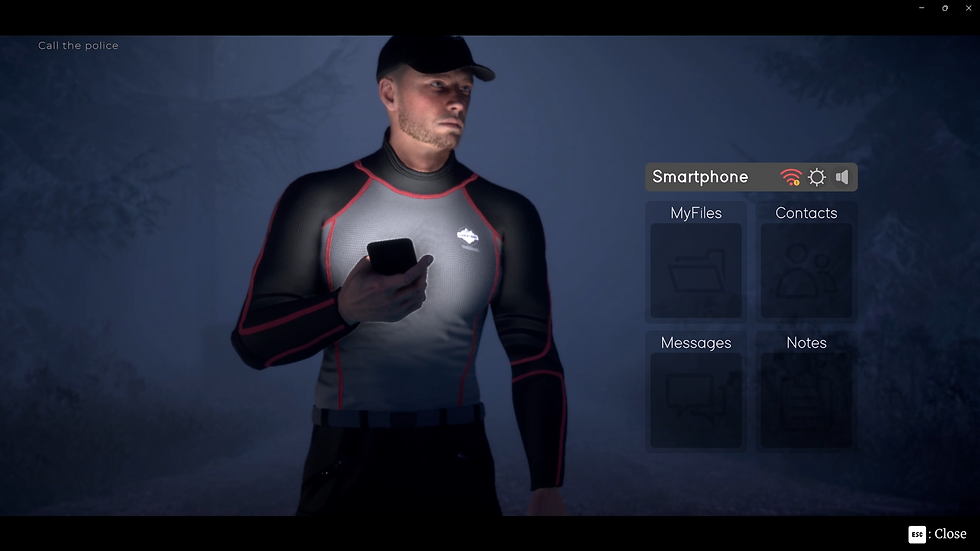
The game features a smartphone that provides the player with various useful tools, enhancing both gameplay and immersion. In addition to serving as a light source in dark environments, the phone offers a variety of applications that serve different purposes.
The player can use the Notes app to record important details, helping them track essential information throughout their journey.
The Contacts app allows the player to advance quests by, for example, calling specific characters. The Messenger app displays text messages, offering deeper insights into the game's characters and story, with additional context provided in pre-written notes. Furthermore, players can view their progress on collectible items, including how many have been discovered and how many remain hidden. Detailed information about each collectible can also be accessed.
To maintain immersion, the phone's primary UI is designed to be diegetic, meaning it is integrated into the game world rather than being a separate overlay. This choice ensures that players remain within the atmosphere of the game and are not removed from the experience when interacting with the smartphone. However, the apps and their UI elements are slightly larger than the main phone UI elements to improve readability. This design decision reflects the natural tendency of players to focus entirely on their phone in real life, often blocking out their surroundings when reading messages or interacting with apps. Despite this, the UI elements are still kept as small as possible to maintain the immersion.
Camera view with the phone UI opened.

The phone's messenger app UI, displaying messages exchanged between characters.
When the player opens or closes the smartphone interface, an animation plays, created using Unity's Timeline tool. This animation includes the character interacting with the phone: the screen light is toggled on and off, and the UI elements are animated. Additionally, the camera view shifts accordingly: when the UI is opened, the camera is positioned in front of the character to focus on their face and the phone in their hand, and when the UI is closed, the camera returns to its original position.
Camera view with the phone UI opened.
The phone's messenger app UI, displaying messages exchanged between characters.

Two characters encounter an injured raccoon, triggered by an earlier player decision.
Two characters encounter an injured raccoon, triggered by an earlier player decision.
The player makes a choice, leading to a cutscene where they decide to pretend nothing happened instead of telling the truth.
Interactable Object: Base Class
public interface IInteractable
{
/// <summary>
/// Instantiates the interaction UI canvas.
/// </summary>
void InstantiateIOCanvas();
/// <summary>
/// Executes the interaction with the object.
/// </summary>/// <param name="transform">The transform of the player's gameobject.
</param>
void Interact(Transform transform);
/// <summary>
/// Retrieves the interaction text to display to the player.
/// </summary>
string GetInteractUIText();
/// <summary>
/// Returns the time required to complete the interaction.
/// </summary>
float GetTimeTillInteract();
/// <summary>
/// Provides access to the Interactable Object Canvas component.
/// </summary>
InteractableObjectCanvas IOCanvas();
}The IInteractable interface provides a unified structure for all interactable objects in the game, ensuring consistency across different interaction types such as doors, NPCs, and items. By implementing this interface, each object can define its own interaction behavior while maintaining a modular and scalable system. This approach simplifies the management of interactions throughout the game.
The interface includes the following methods:
-
InstantiateIOCanvas() creates and displays the interaction UI when the player approaches an interactable object.
-
Interact(Transform transform) executes the interaction when triggered, using the player’s position or other relevant data.
-
GetInteractUIText() returns the text to be displayed in the interaction UI, such as "Open Door" or "Pick Up Item."
-
GetTimeTillInteract() provides the time required to complete the interaction, useful for delayed or hold-to-interact mechanics.
-
IOCanvas() grants access to the Interactable Object Canvas, a UI component associated with the object.
-
Two characters encounter an injured raccoon, triggered by an earlier player decision.
The player makes a choice, leading to a cutscene where they decide to pretend nothing happened instead of telling the truth.
Drawing Interacting-FOV-Circles
/// <summary>
/// Unity editor function to visualize the field of view in Scene view.
/// </summary>
private void OnSceneGUI()
{
// Casts the target as an 'Interacting' object to access its properties
Interacting interacting = (Interacting)target;
// Draws two fields of view with different radii, angles, and colors
DrawFieldOfView(interacting, interacting.viewRadius,interacting.viewAngle,
Color.red); // Big circle
DrawFieldOfView(interacting, interacting.viewRadius2,interacting.viewAngle2,
Color.blue); // Small circle
}
/// <summary>
/// Draws an arc and boundary lines representing the field of view based on radius and angle.
/// </summary>
/// <param name="interacting">Instance of Interacting, providing position and direction.</param>
/// <param name="viewRadius">Radius of the field of view (distance from the origin).</param>
/// <param name="viewAngle">Angle of the field of view in degrees.</param>
/// <param name="wireColor">Color for the field of view outline.</param>
public void DrawFieldOfView(Interacting interacting, float viewRadius, float viewAngle, Color wireColor)
{
// Set the color for the FOV visualization lines
Handles.color = wireColor;
// Draws a circular arc at the object's position, indicating the reachof the view radius
Handles.DrawWireArc(
interacting.transform.position, // Origin of the arc
Vector3.up, // Axis of rotation (upward inworld space)
Vector3.forward, // Starting direction of the arc
360, // Full circle for the arc
viewRadius // Radius length
);
// Calculates the boundaries of the view angle by converting degrees todirection vectors
Vector3 viewAngleA = interacting.DirFromAngles(-viewAngle / 2, false);// Left boundary of the FOV
Vector3 viewAngleB = interacting.DirFromAngles(viewAngle / 2, false);// Right boundary of the FOV
// Draws lines from the object's position to the FOV boundary points
Handles.DrawLine(
interacting.transform.position,
interacting.transform.position + viewAngleA * viewRadius
); // Left boundary line
Handles.DrawLine(
interacting.transform.position,
interacting.transform.position + viewAngleB * viewRadius
); // Right boundary line
}This script helps visualize a character's field of view directly in Unity's Scene view, making it easier to adjust and fine-tune detection areas. It draws two overlapping FOV indicators with different sizes and colors, representing different detection ranges. The OnSceneGUI function grabs the object being edited and calls DrawFieldOfView, which handles the actual drawing.
To show the FOV, the script first draws a circular arc representing the maximum detection radius. Then, it calculates the left and right boundaries of the view angle and draws lines from the object's position to these points. This way, I can get a clear visual of what the character can "see" in the game, helping with debugging and gameplay adjustments.
Two characters encounter an injured raccoon, triggered by an earlier player decision.
The player makes a choice, leading to a cutscene where they decide to pretend nothing happened instead of telling the truth.
Message App: Date Popup
public void Update()
{
// Check if the chat information UI is currently active
if (chatInformationUI.activeSelf)
{
// Detect if the mouse scroll wheel is not being used (noscroll input detected)
if (Input.mouseScrollDelta.y == 0)
{
// Increment the timer if the time elapsed since thelast scroll input is less than the maximum allowed
if (timeTillDateInfoOff > currenTimeTillDateInfoOff)
{// Accumulate time while no scrolling is detected
currenTimeTillDateInfoOff += Time.deltaTime;
}
else
{
// If the maximum time is reached, reset the timerand animate the current day display off
currenTimeTillDateInfoOff = 0;
// Trigger the animation to hide the current daydisplay
AnimateCurrentDayDisplayOff();
}
}
else
{
// Checks the current animation
if (currentScrollChatDateAnim.GetCurrentAnimatorClipInfo(0)[0].clip.name
!= "CurrentDayDisplay_On_Anim")
{
// Trigger the animation to display the current dayinformation
AnimateCurrentDayDisplayOn();
}
// Reset the timer since the user has interacted withthe scroll input
currenTimeTillDateInfoOff = 0;
}
}
}This script manages the visibility of the date display in the in-game smartphone's messaging app, similar to how apps like WhatsApp temporarily show the date while scrolling through messages.
When the player scrolls, the script checks if the date display is already visible. If not, it triggers an animation to show it. If the player stops scrolling, a timer starts counting down. Once a set time has passed without any scrolling input, the date display fades out through an animation. However, if the player scrolls again before the timer expires, the timer resets, keeping the date display visible.
The script also verifies that the animation isn't already playing, preventing redundant animations.
Two characters encounter an injured raccoon, triggered by an earlier player decision.


